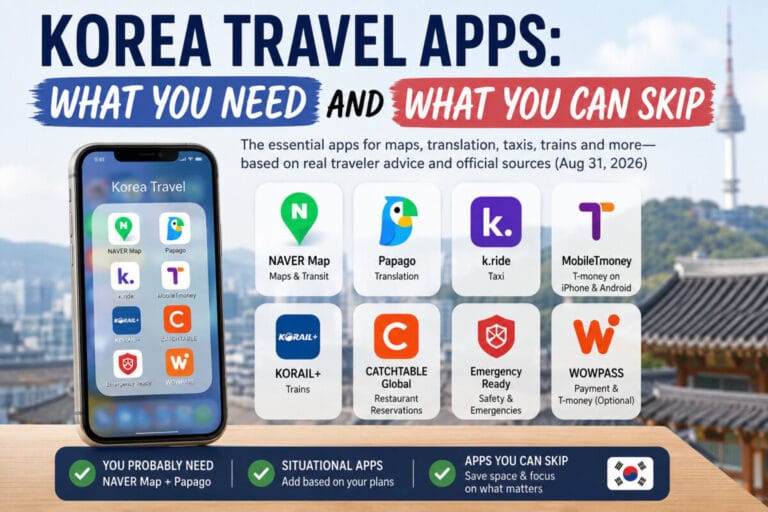
KOREA ESSENTIALS · NAVER MAP
How to Use NAVER Map in Korea: A Tourist Guide in English
First Korea Trip · Updated August 27, 2026
Last fact-checked: August 27, 2026 · How we verify travel information
To use NAVER Map in Korea as a tourist, switch the app to English, search the exact place or Korean address, then check the route details before you start moving. For public transport, pay attention to the subway line, transfer station, bus stop, and exit number rather than only the estimated travel time.
QUICK ANSWER
- Set NAVER Map to English from MY → Settings → Language on Android. On iPhone, the app may direct you to the device’s preferred-language settings.
- Search the exact destination and confirm the branch, address, and map pin before starting a route.
- If an English search is unclear, paste the Korean place name or road address from your hotel, reservation, or official venue page.
- For subway and bus trips, open the route details and note transfers, stops, and the correct subway exit.
- You can search and get directions without organizing saved lists; saving places and routes requires a NAVER login.
| Quick fact | What to know |
|---|---|
| Languages | Korean, English, Simplified Chinese, and Japanese are supported in the NAVER Map app. |
| Useful for | Place search, addresses, walking directions, public transport routes, subway maps, and local place information. |
| Transit | NAVER states that the app provides real-time public transport information and route guidance. |
| Saved places | NAVER Help says saved places, routes, and transport favorites require login with a NAVER ID. |
| Best tourist habit | Confirm the exact branch and destination pin before following a route. |
How to Use NAVER Map in Korea in English
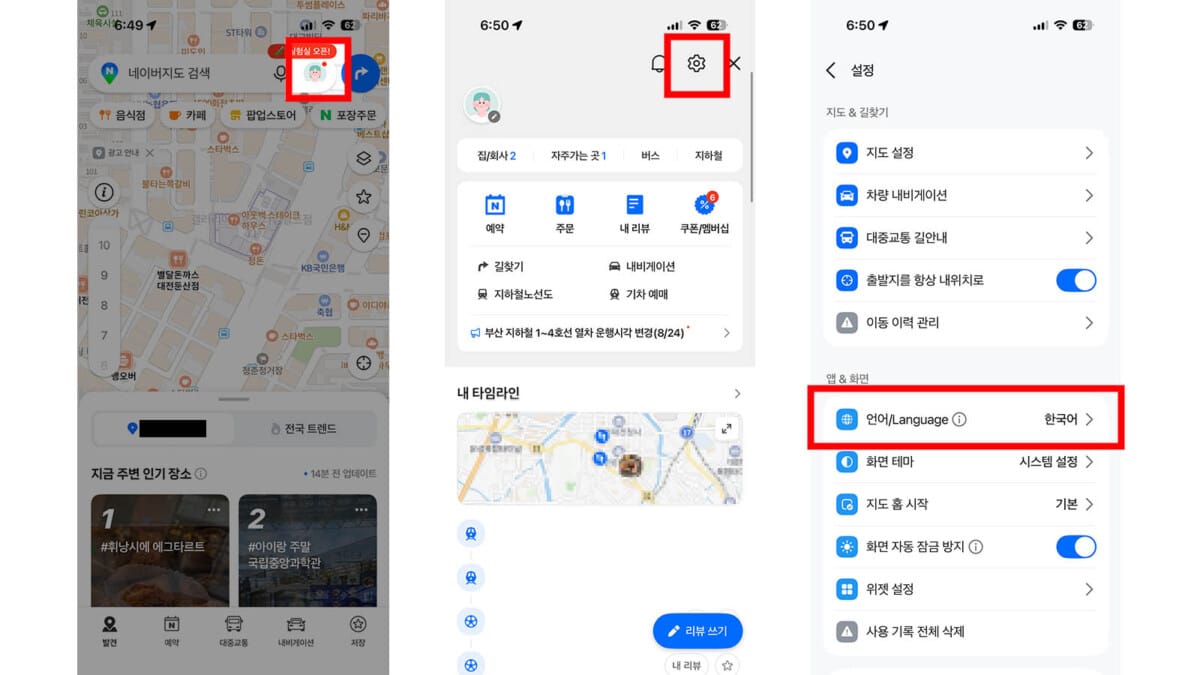
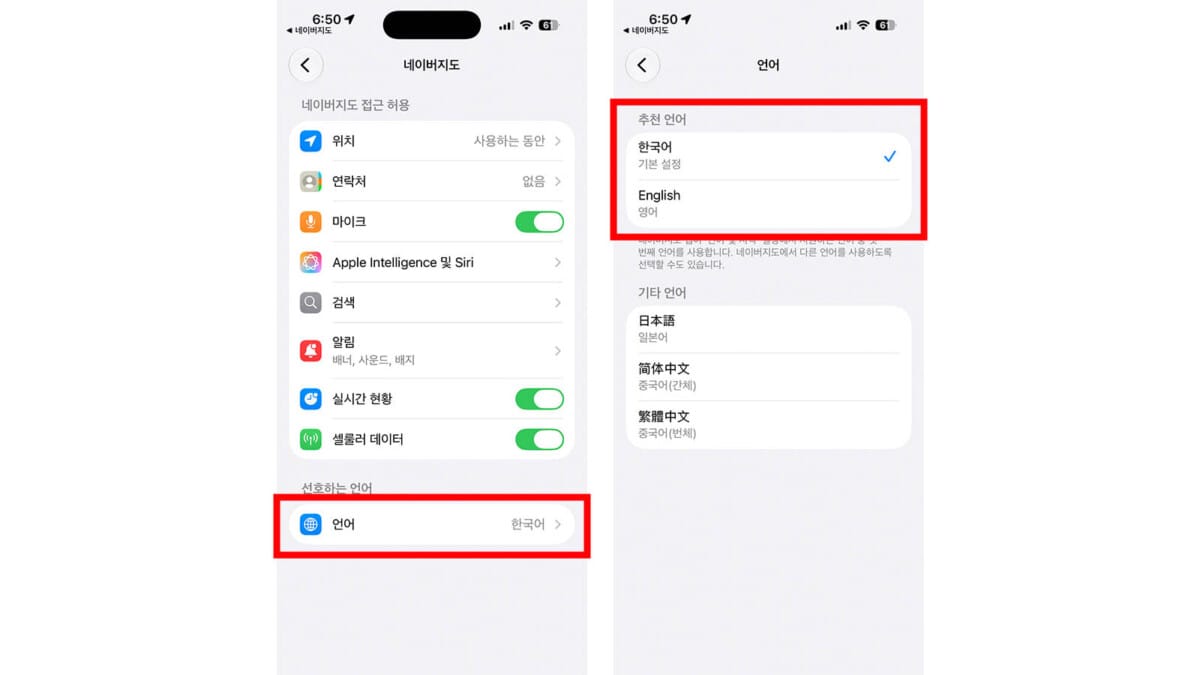
NAVER’s current help page lists four app languages: Korean, English, Simplified Chinese, and Japanese. On Android, open the MY profile icon, tap the settings gear, then choose Language. On iOS, the same menu can send you to the iPhone’s NAVER Map preferred-language setting.
- Android: MY → Settings → Language → English.
- iPhone: MY → Settings → Language, or Settings → NAVER Map → Preferred Language.
- If the iPhone language option is missing, NAVER says to add a supported language under the device’s Language & Region settings.
Search the Exact Place, Not Just the English Name
NAVER Map can search places, bus stops, subway stations, and addresses. The practical problem for visitors is not usually opening the search box; it is making sure the result is the correct branch or entrance.
When several places have similar English names, compare the address, neighborhood, nearby station, photos, and map pin before starting navigation. If the English result looks wrong or incomplete, copy the Korean place name or road address from your reservation, hotel message, ticket, or the venue’s official page and paste it into NAVER Map.
- For a hotel: match the Korean road address and neighborhood.
- For a restaurant or café chain: confirm the branch name, not only the brand.
- For an attraction: check which entrance or gate your ticket or reservation uses.
- For a subway station: treat the exit number as part of the destination.

Use NAVER Map for Subway and Bus Routes
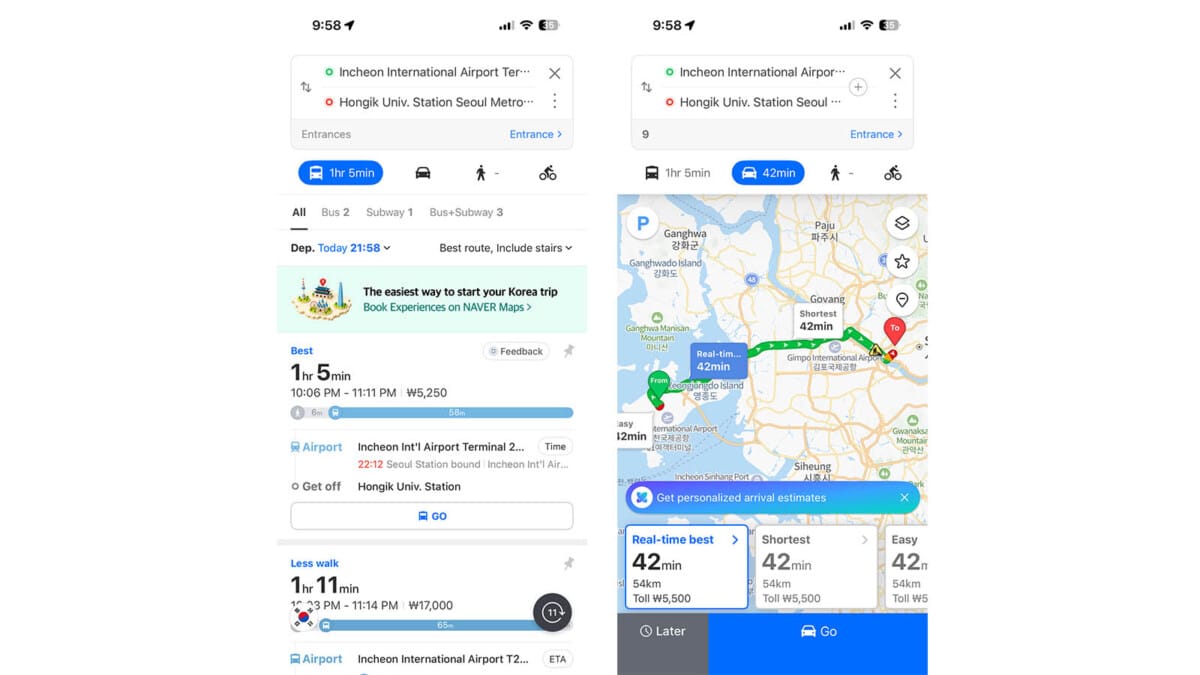
NAVER says its map service provides route guidance across transportation modes, while its tourist-facing materials highlight real-time public transit arrival information, subway maps, boarding and alighting guidance, and alternative transport options. For a tourist, the useful part is the route detail screen: it tells you what to do next, not just how long the trip may take.
Before leaving, note the line or bus number, transfer point, destination stop, and any subway exit shown for the final walk. If your trip uses the Seoul subway for the first time, use the Seoul Subway Guide for the station-side steps →
NAVER Map plans the route, but it does not replace the payment step. For buses and subways, you still need the appropriate fare method. See how to buy, top up, and use a T-money card →
- Check whether the route starts with a walk, subway, or bus.
- Open the transfer details instead of memorizing only the total time.
- For the subway, confirm the line and platform direction again inside the station.
- For a bus, confirm the stop name before boarding and watch the route as you approach your destination.
Use Walking Directions for the Last Part of the Trip
The final few hundred meters are where first-time visitors often lose time. After leaving a station or bus stop, reopen the walking route and check whether the blue location marker is moving in the expected direction.
In large subway stations, choose the correct exit before you reach street level. The nearest exit can save you from crossing a wide road or walking around a large block. If you are traveling with someone who needs to minimize stairs, hills, or long station walks, see the Seoul guide for elderly parents and limited-mobility planning →
- Zoom in before turning at a small street or alley.
- Check whether the destination pin sits inside a large mall, station, or complex.
- If the route feels wrong, stop and re-center your location instead of continuing several blocks.
Save Places Only If You Need a Trip List
NAVER Help says saved places, routes, and favorite public transport items are available when you are logged in with a NAVER ID. This is useful for building separate lists for hotels, restaurants, cafés, or neighborhoods, but you do not need to organize a large saved list just to follow a route to one destination.
A simple tourist setup is to save only places you are likely to revisit or compare later. For the rest, search the exact destination when you need it. This reduces the chance of selecting an old or similarly named branch from a crowded list.
6 NAVER Map Mistakes Tourists Can Avoid
- Choosing the first result with the right English name. Verify the branch, address, and pin.
- Starting the trip without opening the route details. Check the line, transfer, stop, and exit first.
- Ignoring Korean text when English search is ambiguous. A copied Korean address can be the fastest way to identify the correct place.
- Treating the estimated time as the whole plan. Station transfers and the final walk can matter more than a small time difference.
- Assuming a saved place is always current. Recheck the current place detail before making a long trip.
- Following the phone while ignoring signs around you. In stations, airports, and large complexes, use the app together with physical signs.
A Simple NAVER Map Workflow for Your First Korea Trip
Use the same five-step routine every time you move somewhere new:
- Search: enter the place name, station, or address.
- Verify: confirm the exact branch, Korean address, photos, and pin.
- Route: compare the practical options and open the full steps.
- Move: follow the next action while checking station signs, stop names, and street position.
- Recheck: near the destination, confirm the final exit, entrance, or building.
If you are starting at Incheon Airport, first choose how you will reach the city, then use NAVER Map for the local part of the trip. Compare AREX, airport bus, and taxi from Incheon Airport to Seoul →
NAVER Map FAQ for Tourists
Can I use NAVER Map in English?
Yes. NAVER’s current help page lists English as one of four supported app languages, along with Korean, Simplified Chinese, and Japanese.
How do I change NAVER Map to English?
On Android, use MY → Settings → Language. On iPhone, use the app’s language menu or the device setting for NAVER Map’s preferred language.
Do I need a NAVER account to use NAVER Map?
You need a NAVER login to save places, routes, and favorite transport items according to NAVER Help. For a basic trip, you can keep the workflow simple and search the destination when you need it.
What should I do if NAVER Map cannot find the place in English?
Try the Korean place name or road address from your reservation, hotel, ticket, or the venue’s official page. Then verify the branch and map pin before routing.
Can NAVER Map show subway and bus routes?
Yes. NAVER’s official materials describe public transport route guidance, real-time arrival information, subway maps, and boarding or alighting guidance.
Should I use NAVER Map instead of Google Maps in Korea?
You do not need to make this an either-or choice. NAVER Map is designed around Korean place data and local route guidance, so it is useful to keep installed for navigation in Korea. Mapping services change, so use whichever app gives you the clearest verified route for the trip you are making.
Official Sources
- NAVER Corp. — NAVER Map Service
- NAVER Map Help — App Language Settings
- NAVER Map Help — Map Home and Search Features
- NAVER Map Help — Saving Places, Routes, and Public Transport
- NAVER Corp. — Multilingual NAVER Map Guide for Foreign Visitors
The simple version: to use NAVER Map in Korea, set the app to English, verify the exact destination, open the full route details, and keep checking the real-world stop, station, exit, or entrance as you move.
Travel information and app interfaces can change. Recheck important routes, operating details, and destination information before relying on them during your trip.